01
Type your message
Got a quick sign or an important note to share? Just type it in! Our tool is all about making things huge and readable, rather than throwing in crazy, hard-to-read fonts.
Need to grab everyone's attention across the room? Turn short messages into a massive, ultra-readable display right here.
Turn short messages into a massive, ultra-readable display right here.
Got a quick sign or an important note to share? Just type it in! Our tool is all about making things huge and readable, rather than throwing in crazy, hard-to-read fonts.
You're in total control. Adjust the size, alignment, and colors until it looks perfect. Every tweak you make updates instantly right here, so there is zero guesswork.
What you see is exactly what you get. If it still feels a bit tiny from a distance, just use the controls on this larger text generator and watch the display board snap right into place.
Ready to go? Hit fullscreen to show it live, or export it to a PNG or SVG file. It makes saving your huge signs super fast and easy.
Honestly, a larger text generator is your best friend when you just need people to read your message clearly from far away. Whether you're holding up a pickup sign at the airport, showing a quick cue in a meeting, or helping out with accessibility, this tool has your back.
We didn't design this to be a super complex graphic editor. It's all about giving you a bold, clean board fast, keeping your live display right up front without any annoying distractions.
We believe in an honest preview. What you see on screen is exactly what you'll get in fullscreen or when you download it. You can tweak the colors and backgrounds seamlessly in real time.
When you're dealing with massive words, edge spacing and contrast are everything. A lot of tools focus on weird styles, but this larger text generator strictly makes sure your words are readable from anywhere in the room.
The best times to fire this up are when you're at the airport, running a presentation, or trying to manage a loud environment. Whenever you need attention-grabbing words that people can read from ten feet away, this is your go-to.
Keep in mind, wrapping an entire novel on a screen won't work well! That's why a larger text generator shines brightest when you stick to short, punchy statements.
Tested on the live tool
This example uses the kind of compact direction that benefits from fullscreen presentation, high contrast, and generous space around the words.
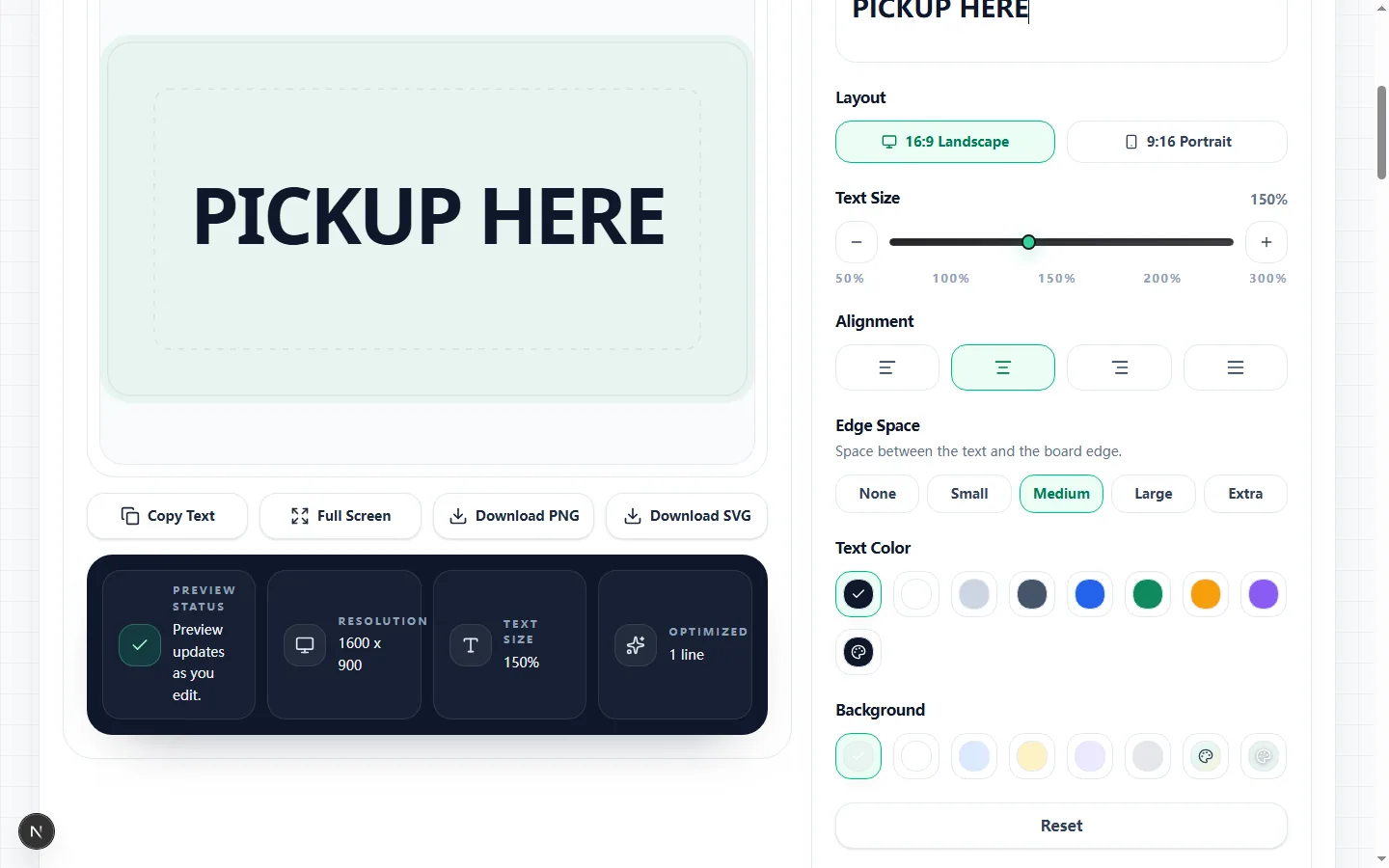
Start with the words someone must understand at a glance, then choose the board shape. The larger text generator accepts up to 200 characters and updates the preview while you edit. Its landscape board uses a 1600 by 900 canvas, while portrait uses 1080 by 1920, so the same message can wrap very differently when you switch layouts.
Short instructions such as a meeting room, pickup name, queue number, or event cue leave more room for large lettering. If a sentence wraps into several lines, trim secondary wording before pushing the size control higher. That keeps the key phrase prominent without forcing it against the safe-area guide.
The Text Size control runs from 50% to 300% in 10% steps. That percentage is a target rather than a fixed physical size: the preview also fits the text to the available width and height, wraps words, and limits the board to six rendered lines. Long unbroken words can be split so they stay inside the frame.
Edge Space selects one of five padding levels, from None through Extra. More edge space protects a sign from screen bezels or a tight crop, but it also leaves less room for the letters. Check the live preview after changing both controls because a larger padding choice can make the fitted text smaller even when the percentage has not changed.
Choose left, center, right, or spread alignment, then select a text and background color from the provided swatches or use the custom color pickers. The preview applies those settings immediately. For a name board or a short announcement, centered text is usually easy to scan; left alignment is useful when several short lines need a consistent starting edge.
Color choice should be checked as contrast, not decoration alone. Dark ink on mint or white is a dependable starting point, while light text needs a sufficiently dark custom background to remain legible. View the board at the brightness and distance you expect to use, because a combination that looks attractive close up may fade on a dim or reflective display.
Copy Text places only the plain message on the clipboard; it does not carry the board colors, scale, alignment, or padding into another app. Full Screen opens the current preview board in the browser's fullscreen area, so it is the direct choice when the device itself will act as the sign.
Download PNG creates a raster image at the active layout resolution, and Download SVG saves the same board as scalable vector markup. Use PNG for straightforward sharing in apps that accept images. Use SVG when a design or print workflow supports vector files and you may need to scale the board later without raster blur.
Test the final board on the actual phone, tablet, laptop, or monitor whenever possible. Open Full Screen, stand at the intended viewing distance, and confirm that the smallest line is readable without guessing. Also check that no important word sits too close to an edge and that automatic wrapping has not separated a name, time, or instruction in an awkward place.
For a downloaded version, open the PNG or SVG rather than judging only the editor thumbnail. Confirm the dimensions, line breaks, colors, and spelling, then send the file through the same messaging, slide, or print workflow you plan to use. That last check catches app-level scaling and cropping that the larger text generator cannot control after export.
Got questions? Here are quick answers to the most common things people ask before putting their big signs on display!
Message
15 / 200
Layout
Text Size
150%
Alignment
Edge Space
Text Color
Background
Runs locally in your browser.